Where the settings live
Step 3 of adding a game asks six questions. A template answers them for you; 'Continue without a template' on step 1 leaves them all to you. Every option is a card with one line of help, and its own settings open inside the card when you choose it.
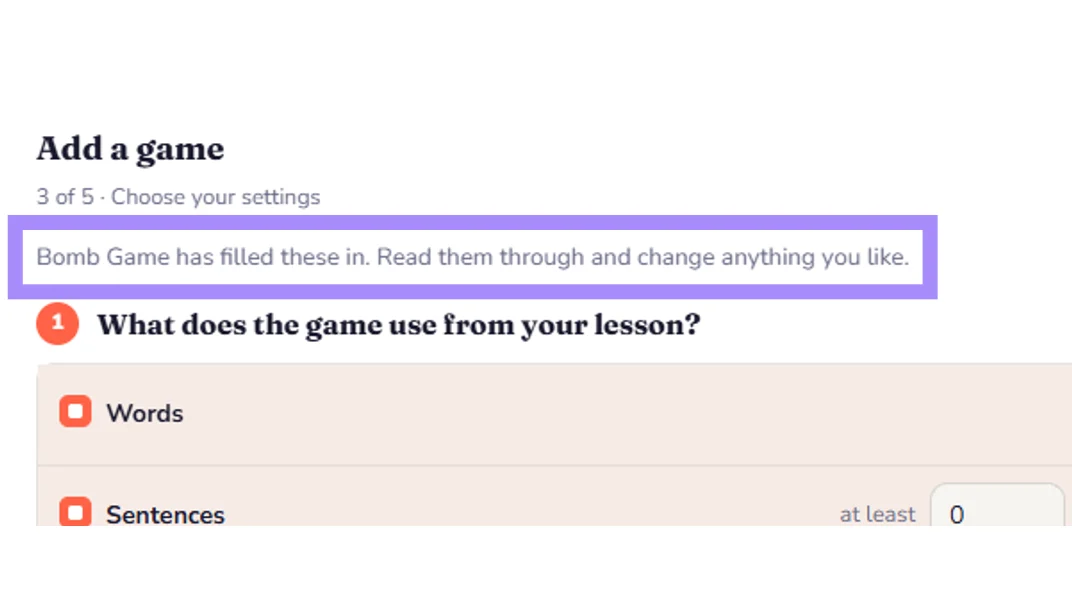
Question 1: What does the game use from your lesson?
Tick 'Words', 'Sentences' or 'Questions and answers' and say the fewest your lesson needs. Question 3 only offers what you tick here, so if a choice seems missing later, come back to this one.
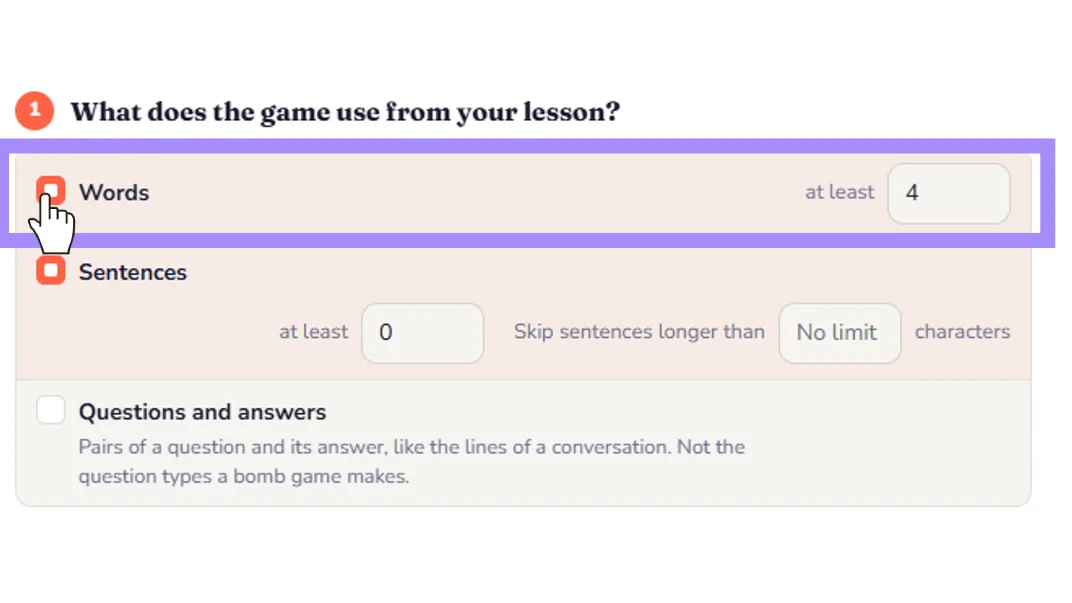
Question 2: How are the slides filled?
Pick how your content is dealt onto the slides. Each option is named after one of our games so you can picture it: 'Bomb game questions' makes a question for every slide with the answer ready, 'A new set each slide' fills a board, 'One per slide' shows one word or sentence at a time.
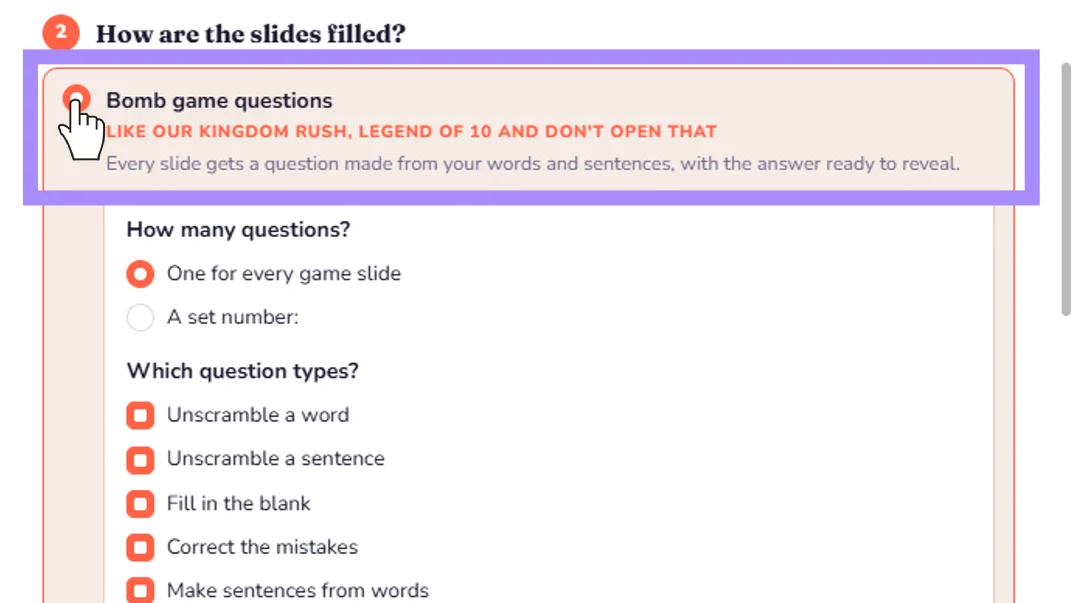
Question 3: What goes where on a slide?
One row per placeholder found in your slides. 'Shows' is what goes into it and 'How many per slide' is how many: here Full Board's {word} shows a set of words or sentences, 12 to a slide. When one placeholder sits in several boxes on a slide, 'Same in every box' puts the same content in all of them.
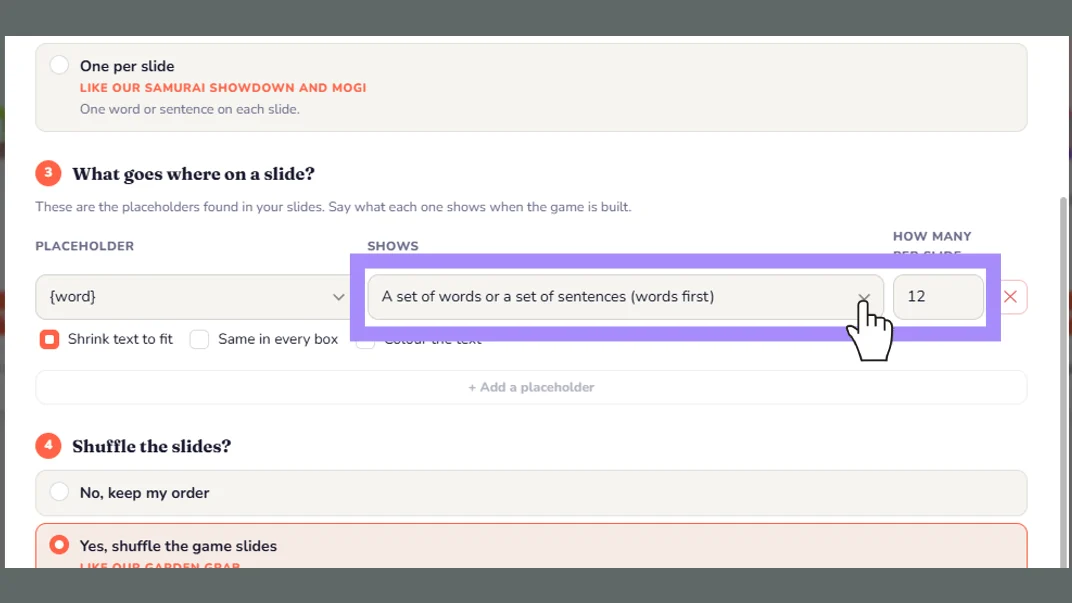
Question 4: Shuffle the slides?
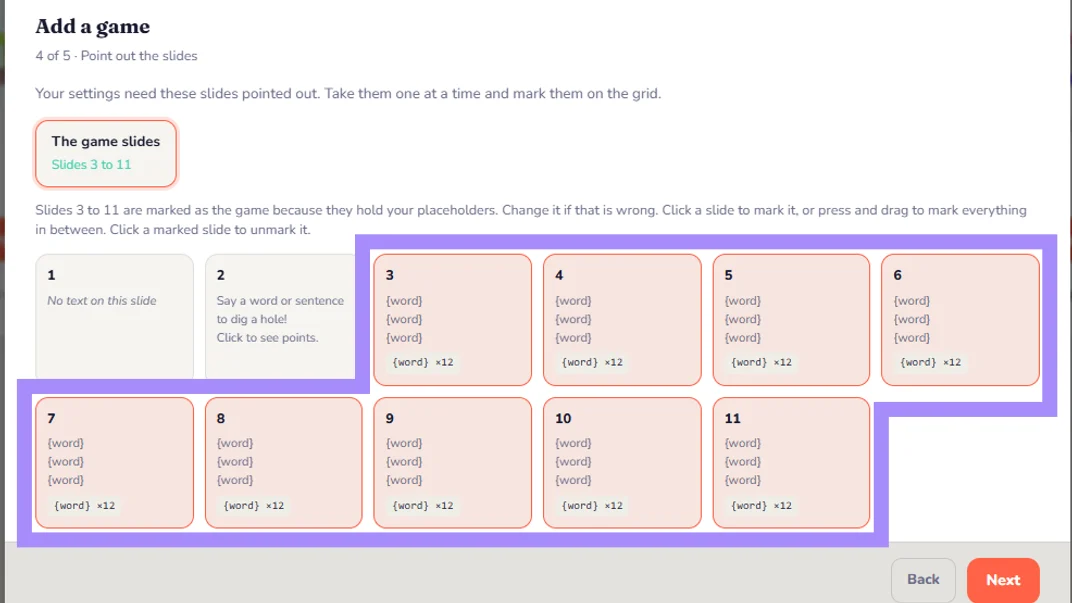
'No, keep my order' leaves them as they are. 'Yes, shuffle the game slides' mixes them every time the game is built. Only the slides marked as game slides on the next step move; your explanation slides stay put. 'Yes, in groups' keeps slides that belong together side by side; set 'Slides in each group' and the groups are drawn on the grid.
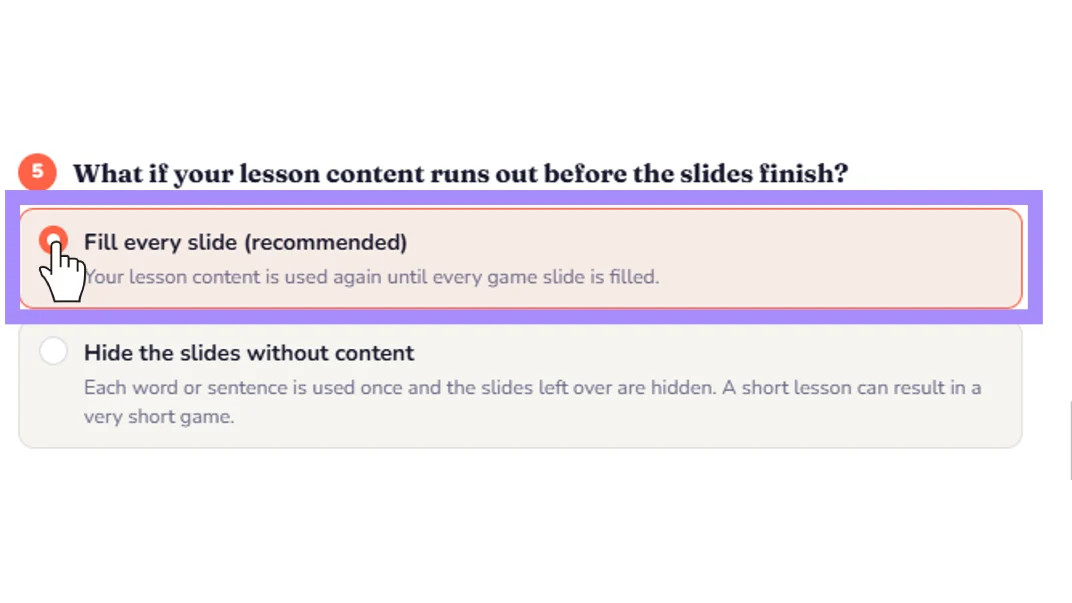
Question 5: What if your lesson content runs out?
'Fill every slide (recommended)' uses your lesson content again until every game slide is filled. 'Hide the slides without content' uses each word or sentence once and hides what is left, so a short lesson makes a short game.
Question 6: Extras
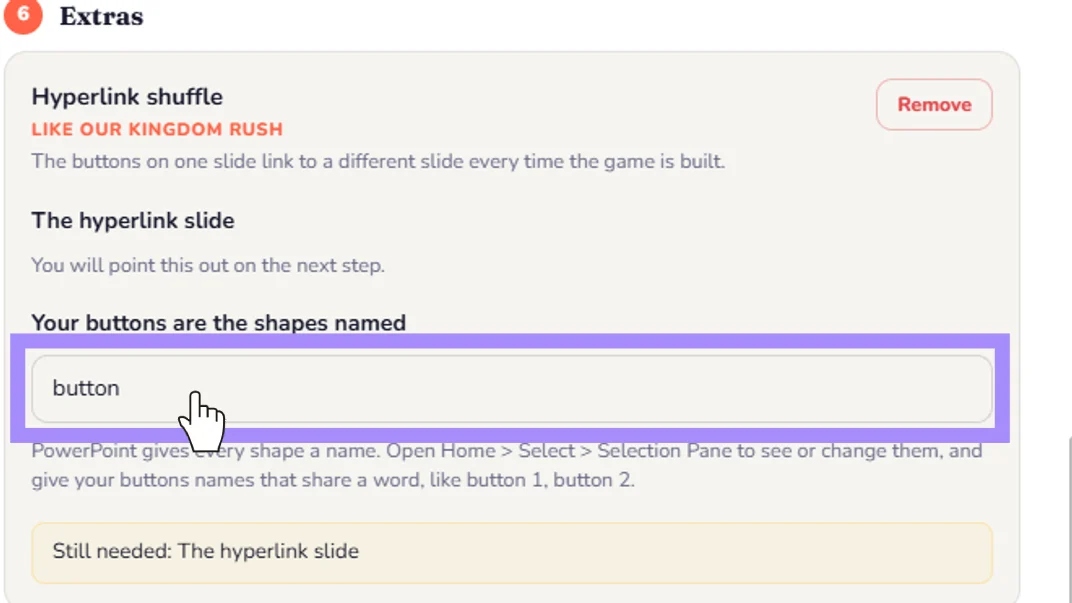
Optional pieces from our games. 'Hyperlink shuffle' relinks the buttons on your hyperlink slide every time, like Kingdom Rush. 'Random line from your list' shows one line picked at random, like the dragon's penalties. 'Add a wrong answer' makes a misspelt or jumbled version of a word or sentence, like Samurai Showdown.
Name your buttons in PowerPoint
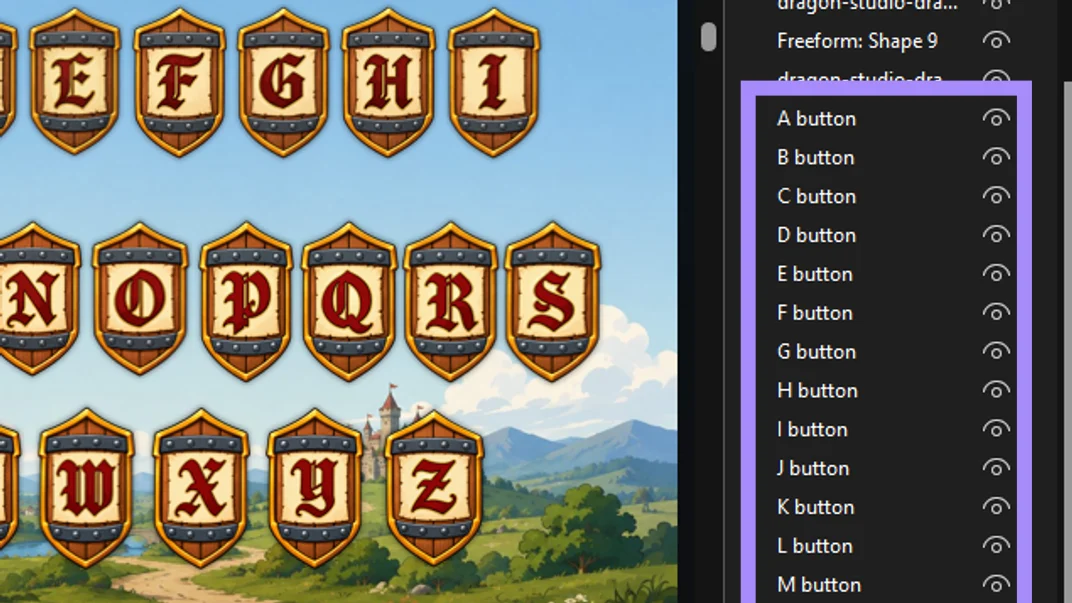
For 'Hyperlink shuffle' we need to know which shapes are your buttons. In PowerPoint open Home > Select > Selection Pane and give your buttons names that share a word, like 'A button', 'B button'. Type that shared word into 'Your buttons are the shapes named'.
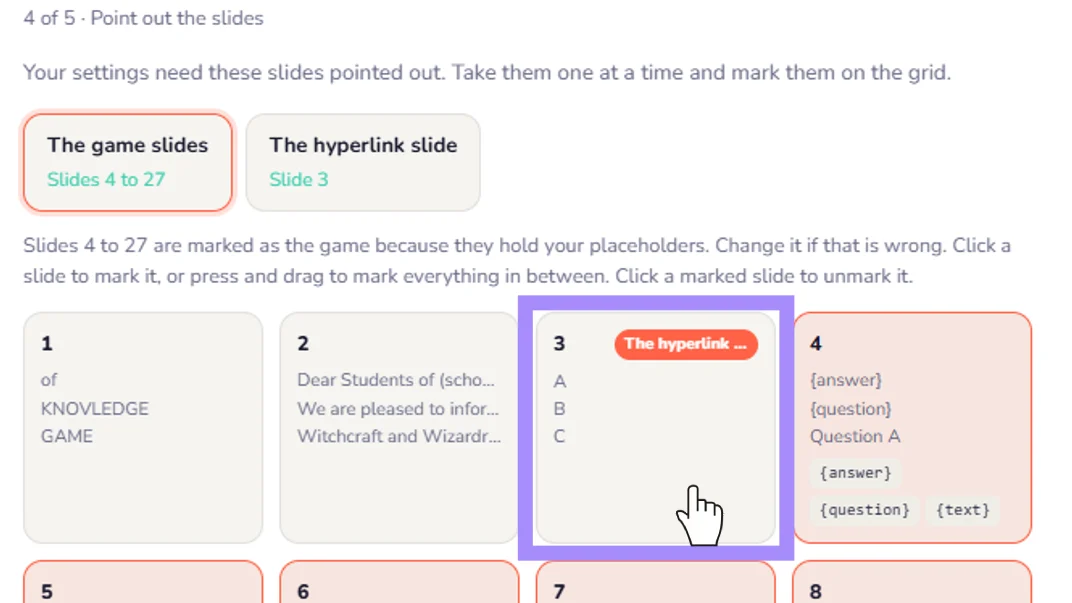
Point out the slides your settings need
Step 4 shows one tile for each thing your settings need: the game slides, the hyperlink slide, the slide that shows the line. Click a tile, then click the slide on the grid. Groups from question 4 are drawn on the grid so you can check them.
Still need help?
Can't find what you're looking for? Our support team is happy to help you directly.