Get your PowerPoint ready
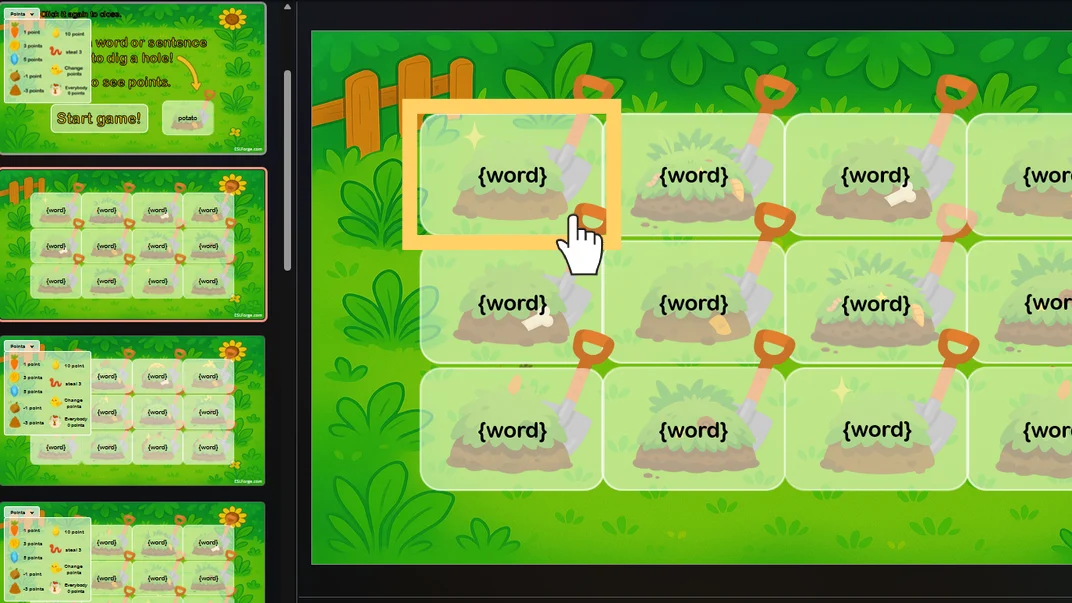
Open the PowerPoint you teach with. Wherever a word or sentence from your lesson should go, type a placeholder in curly brackets, like {word}. Use the same placeholder in every box that shows the same kind of thing, then save the file as .pptx.
Open My Games
Click 'My Games' in the navigation bar, then 'Add game'.

Pick the game yours is most like
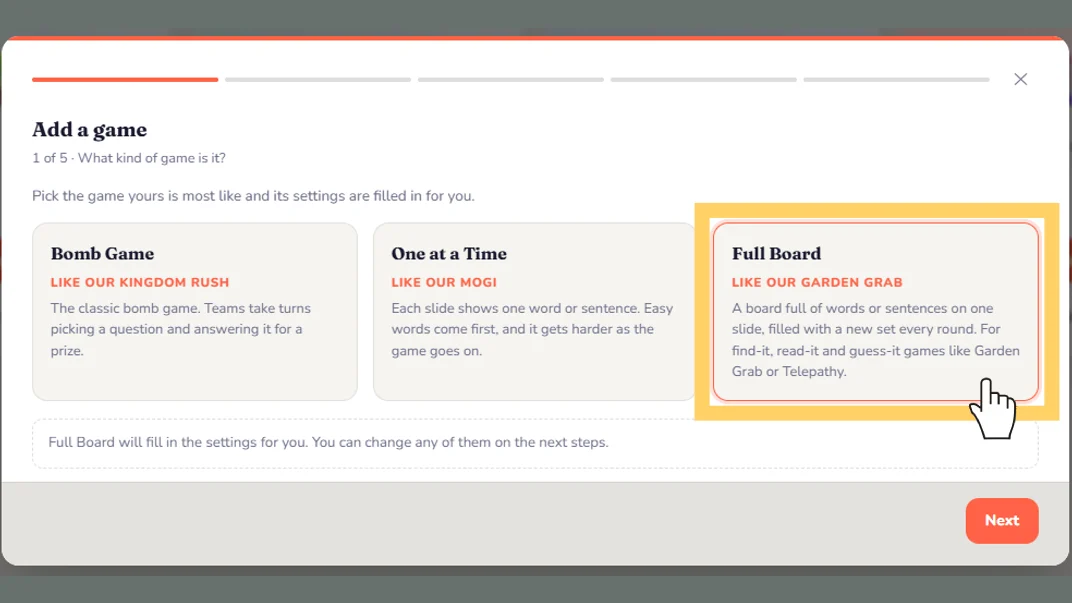
Choose 'Bomb Game', 'One at a Time' or 'Full Board'. The one you pick fills in your settings, so you only have to check them. Not sure? Choose the closest one and change anything you like later.
Upload your PowerPoint
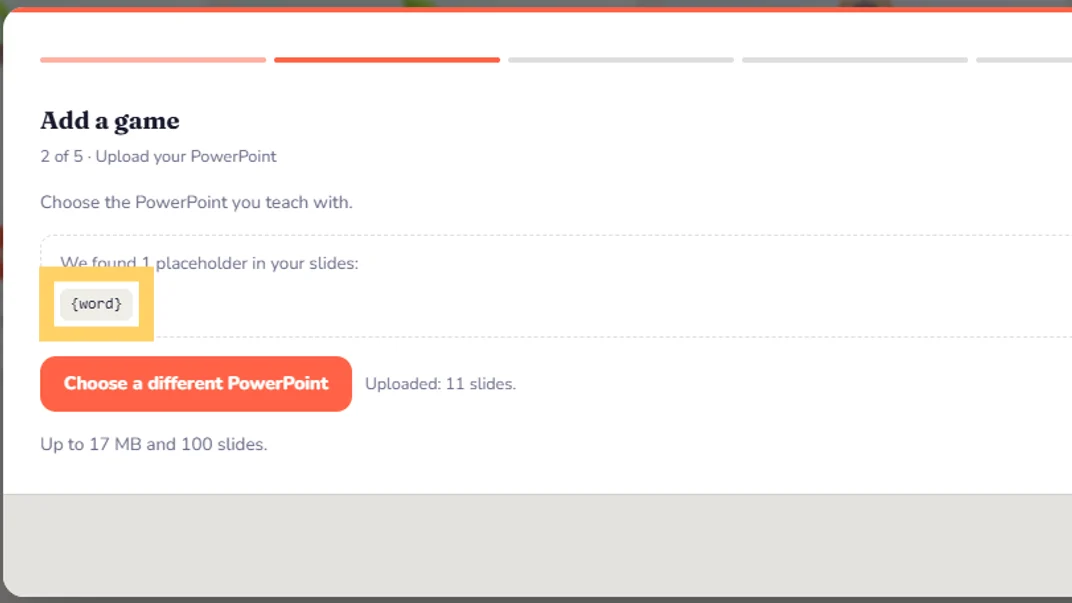
Click 'Choose a PowerPoint' and pick your file. We read your slides and list every placeholder we found. If none are found, add the curly brackets in PowerPoint and upload again.
Check your settings
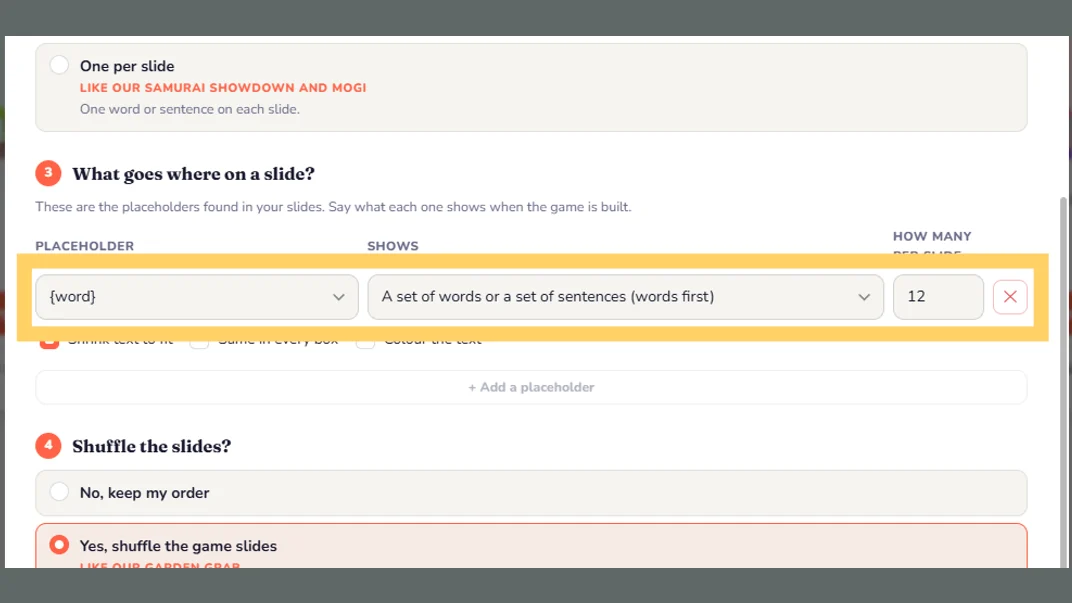
Full Board has already answered the six questions. Read them through. The one to check is question 3, 'What goes where on a slide?': every placeholder from your slides is listed with what it shows and how many go on a slide. To learn what each setting does, read the guide.
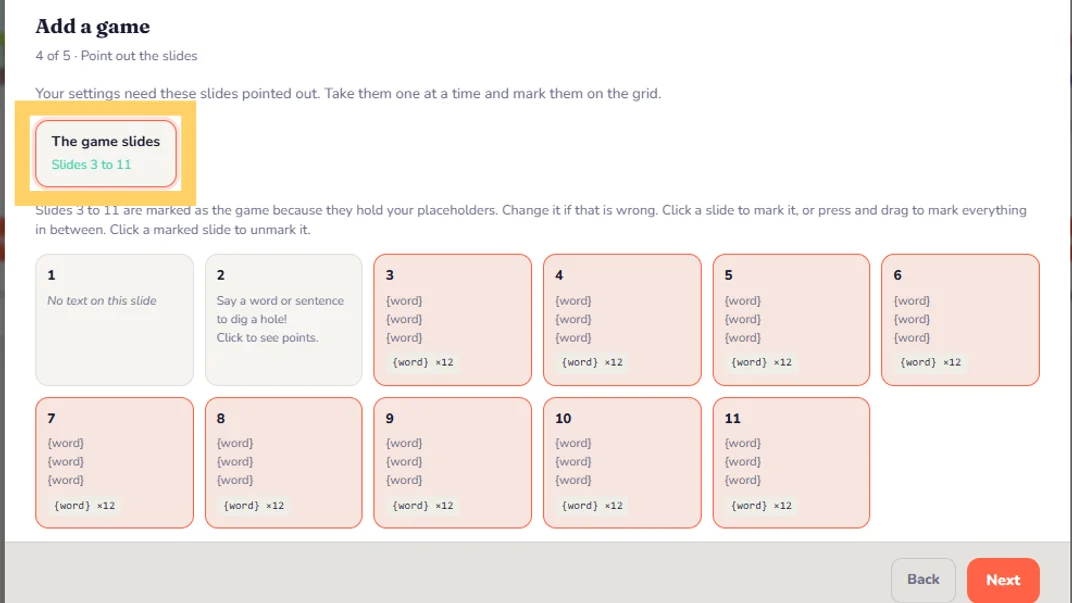
Point out the game slides
The slides holding your placeholders are already marked as the game slides. Check the range is right. Click a slide to mark or unmark it, or press and drag to mark a run of slides.
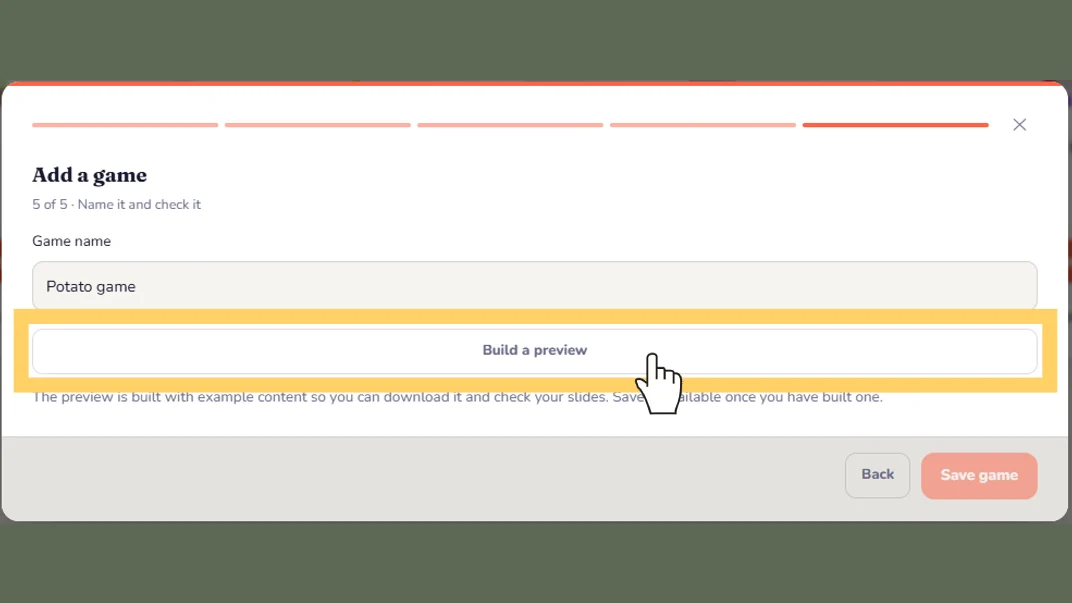
Name it and build a preview
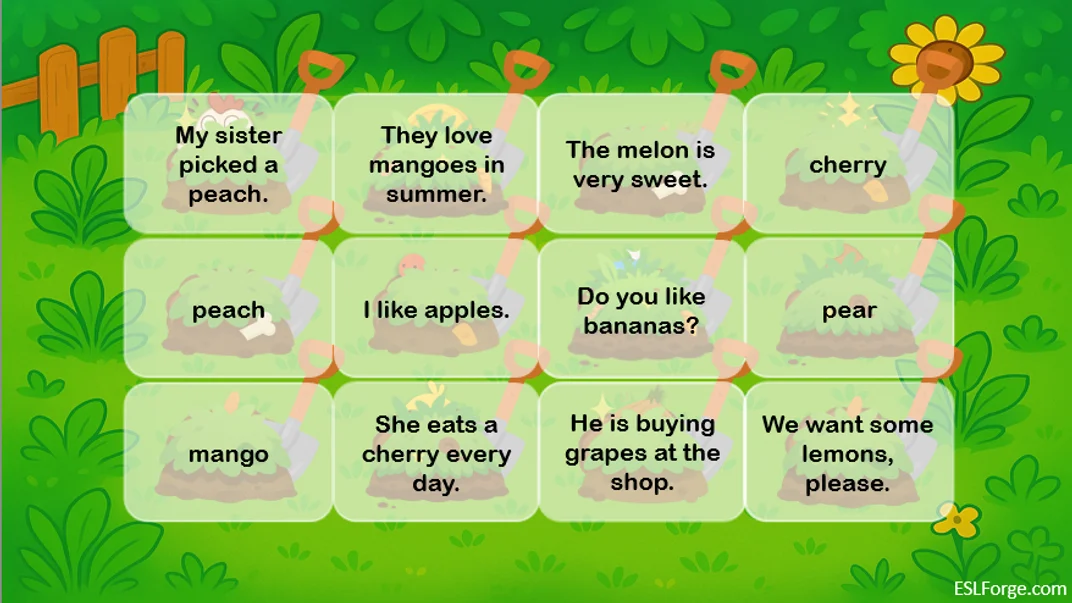
Give your game a name and click 'Build a preview'. The preview is your real PowerPoint filled with example content, so you can see exactly how it will look.
Download the preview and check it
Click 'Download preview' and open it. Any notes from the builder appear under the button. If something is off, go 'Back', change it and build again.
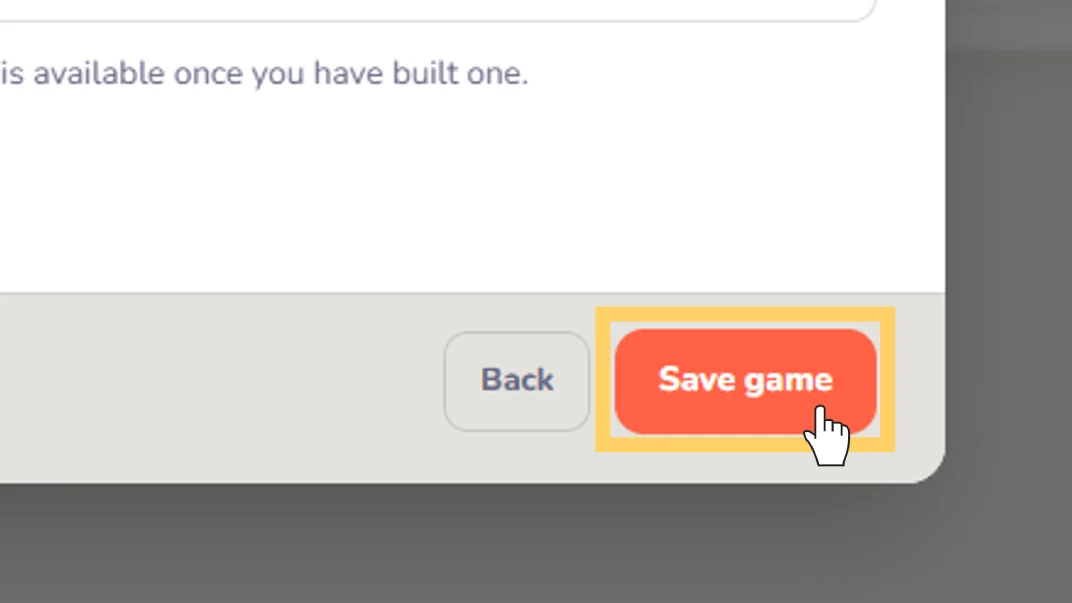
Save your game
Happy with it? Click 'Save game'. Your game now has its own card on your My Games page.
Forge it with any lesson
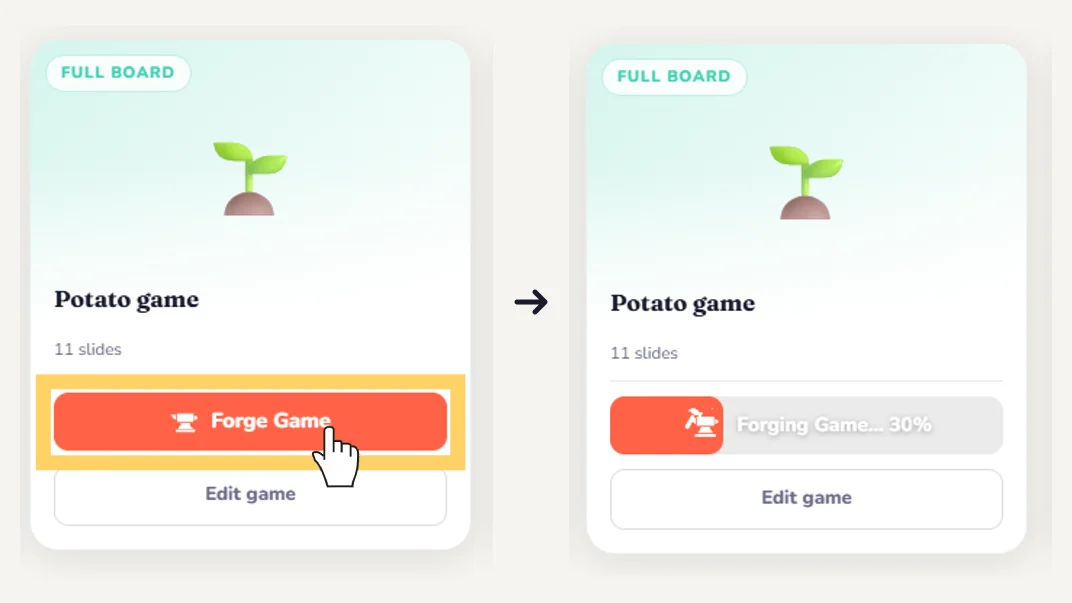
Set a lesson as usual, then press 'Forge Game' on your card. Your PowerPoint is filled with that lesson's words and sentences, the same way our games are. 'Edit game' opens the settings again, and 'Delete game' is inside it.
Still need help?
Can't find what you're looking for? Our support team is happy to help you directly.