Find custom lessons
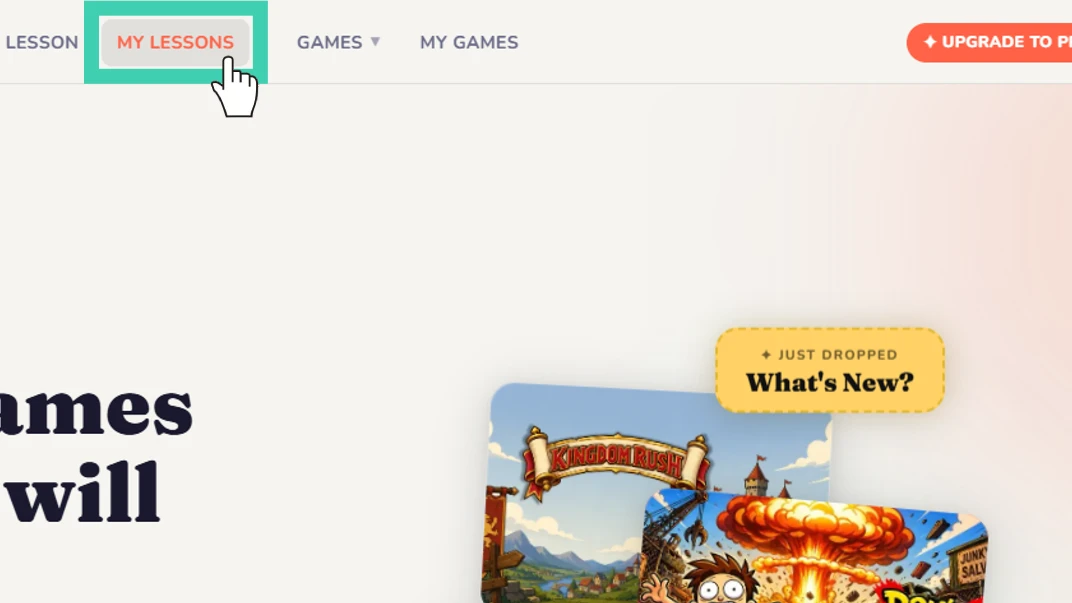
Click 'My Lessons' on the navigation bar, or 'Create Custom Lesson' on the home screen.
Open the lesson builder form
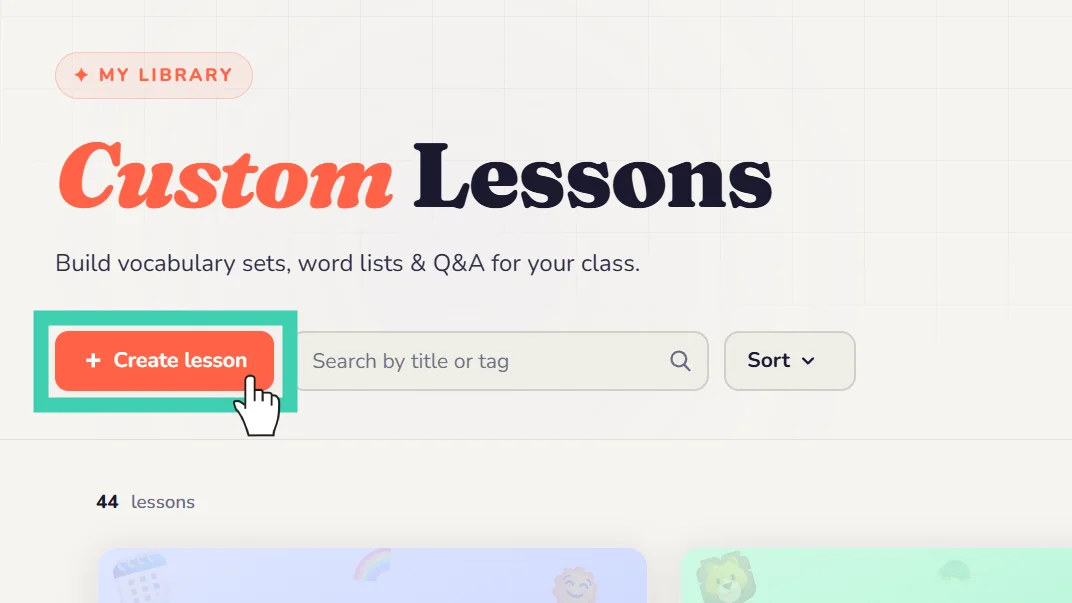
Click the 'Create lesson' button to open the lesson builder form.
Add vocabulary / expressions
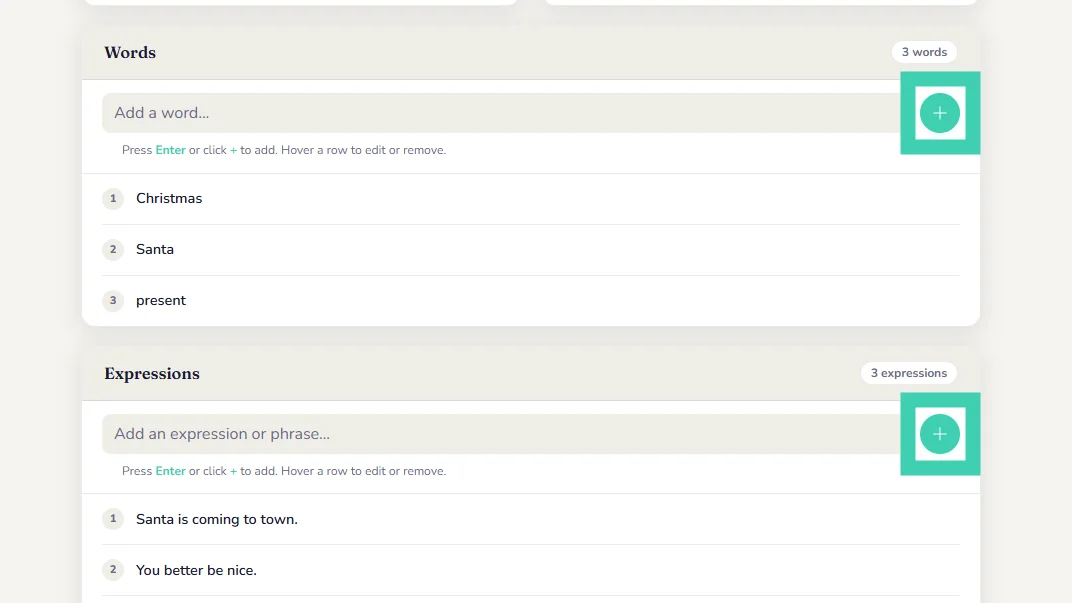
Add the lesson information into their respective fields. You can add expressions and words by typing them in followed by the enter key or clicking the plus button.
Edit lesson data
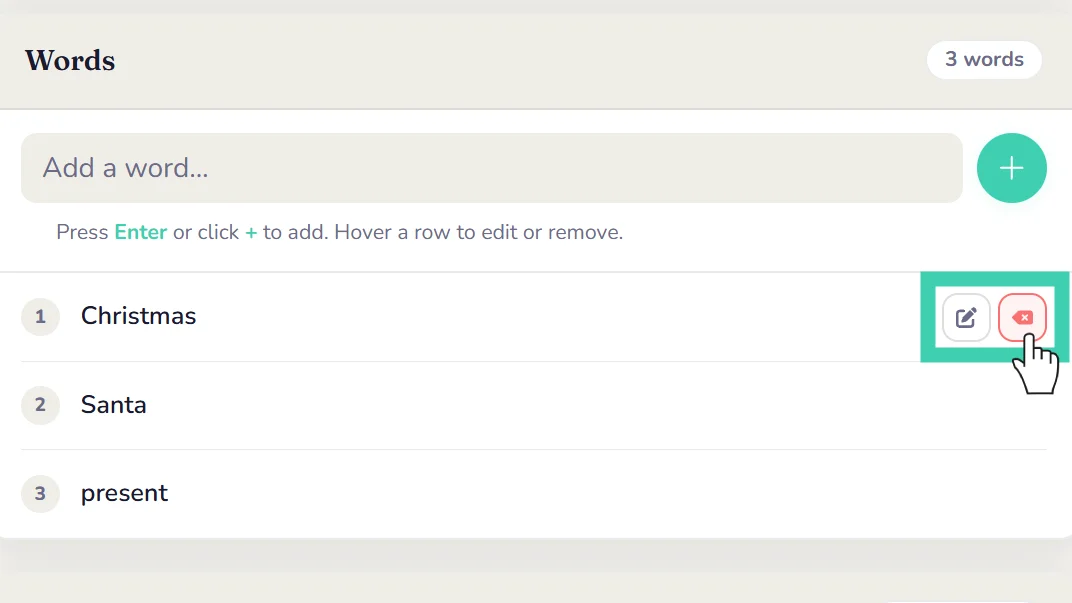
Once added you can edit or delete anything by hovering over the item and selecting your corresponding option. If you select edit the item will appear back in the box from step 3. Don't forget to hit enter again!
Edit the Q&A form
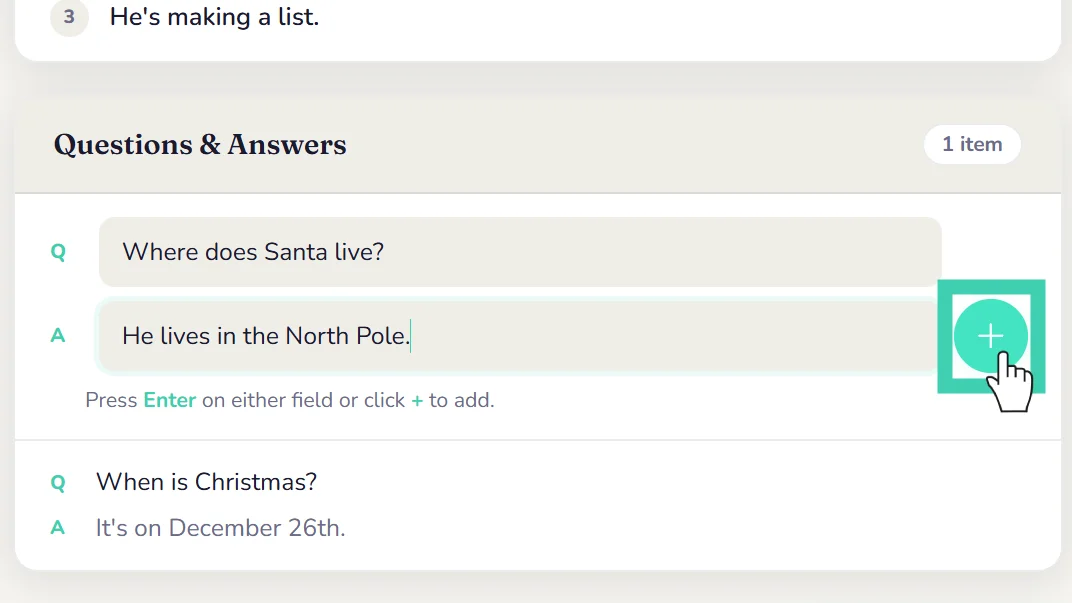
Add question and answer pairs that are used for some of our games.
Save custom lesson
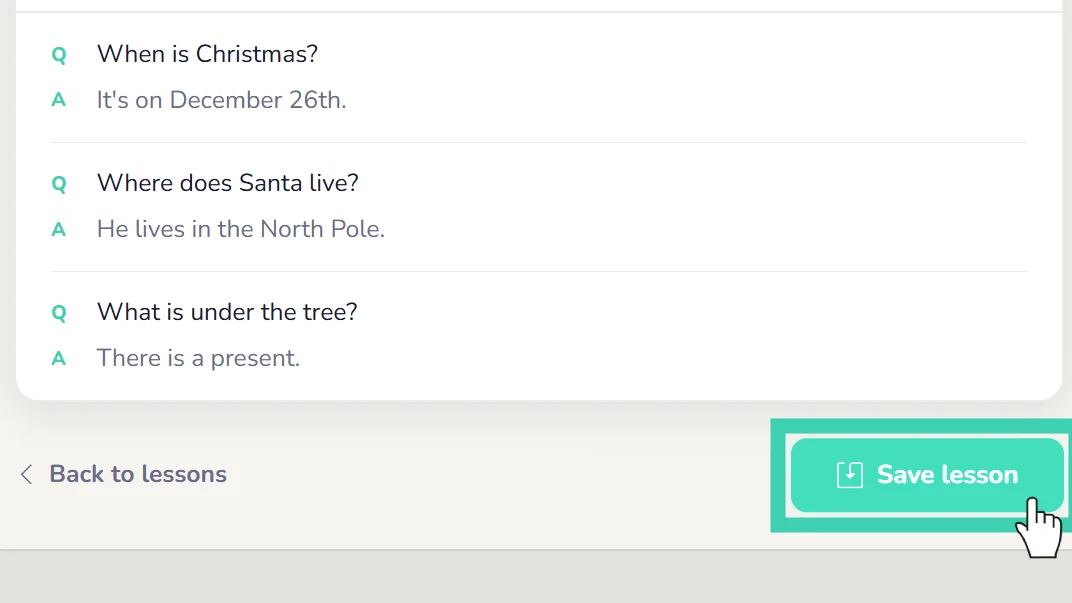
Once you are satisfied with the data you have entered, you can save your lesson by clicking the button at the bottom of the page.
Select custom lesson
Your custom lesson is now available and ready to use! Follow the guide to learn how to use your custom lessons.
Still need help?
Can't find what you're looking for? Our support team is happy to help you directly.